问题
在 Mac 上无论使用命令行工具,还是右键菜单打包、压缩文件,在其他操作系统打开时,都会看到一些隐藏文件,例如:
Mac 文件系统中包含如下内容:
$ tree -a
.
├── .DS_Store
├── file1
├── file2
├── file3
└── test
    ├── .DS_Store
    ├── file1
    ├── file2
    ├── file3
    └── test
        ├── .DS_Store
        └── test

3 directories, 9 files
# 打包
$ tar -cf test.tar file3 test
$ zip -r test.zip file3 test
# 选中要打包的文件及文件夹,右键压缩,获得 Archive.zip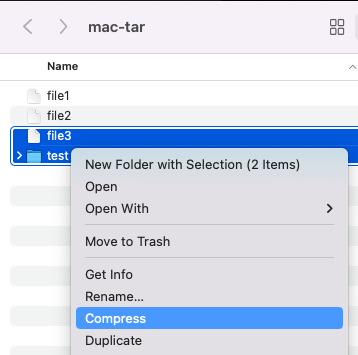
在 Linux 系统查看,会看到如下内容:
$ vim test.tar
" tar.vim version v32a
" Browsing tarfile /home/ec2-user/temp/test.tar
" Select a file with cursor and press ENTER

file3
test/
test/file3
test/._.DS_Store
tar: Ignoring unknown extended header keyword 'LIBARCHIVE.xattr.com.apple.FinderInfo'
test/.DS_Store
test/test/
test/._file2
test/file2
test/._file1
tar: Ignoring unknown extended header keyword 'LIBARCHIVE.xattr.key'
test/file1
test/test/._.DS_Store
tar: Ignoring unknown extended header keyword 'LIBARCHIVE.xattr.com.apple.FinderInfo'
test/test/.DS_Store
test/test/test/
$ vim test.zip
" zip.vim version v34
" Browsing zipfile /home/ec2-user/temp/test.zip
" Select a file with cursor and press ENTER
file3
test/
test/file3
test/.DS_Store
test/test/
test/test/.DS_Store
test/test/test/
test/file2
test/file1$ vim Archive.zip
" zip.vim version v34
" Browsing zipfile /home/ec2-user/temp/Archive.zip
" Select a file with cursor and press ENTER
file3
test/
test/file3
test/.DS_Store
__MACOSX/test/._.DS_Store
test/test/
test/file2
__MACOSX/test/._file2
test/file1
__MACOSX/test/._file1
test/test/.DS_Store
__MACOSX/test/test/._.DS_Store
test/test/test/这些隐藏文件是什么
.DS_Store
Mac 上的 .DS_Store 究竟是什么文件?如何删除?
DS_Store,英文全称是 Desktop Services Store(桌面服务存储),开头的 DS 是 Desktop Services(桌面服务) 的缩写。它是一种由macOS系统自动创建的隐藏文件,存在于每一个用「访达」打开过的文件夹下面。
$ file .DS_Store
.DS_Store: Apple Desktop Services Store
__MACOSX
The technical term for what is contained within this curious folder is a resource fork.
Apple provides built-in capability to ZIP files in OS X 10.3 and higher, and these files are the result of Apple storing Resource Forks safe manner. You would never see these files running OS X 10.3 or higher, but since Windows and other operating systems do not understand this special form of Resource Forks they will appear as you see them.
Just discovered: if you’re on a Mac, using the command line, unzip filename.zip will unpack the __MACOSX/ directory, which you don’t want, but open filename.zip will do the right thing.
– Edward Falk
CommentedJun 22, 2016 at 18:40
._*
Why do I get files like ._foo in my tarball on OS X?
OS X’s tar uses the AppleDouble format to store extended attributes and ACLs.
OS X’s tar also knows how to convert the ._ members back to native formats, but the ._ files are usually kept when archives are extracted on other platforms.
$ file ._file2
._file2: AppleDouble encoded Macintosh file
怎么在打包时自动去掉
tar 命令
COPYFILE_DISABLE设置为1可禁止生成._*文件--exclude参数可排除.DS_Store文件
COPYFILE_DISABLE=1 tar --exclude='.DS_Store' -cf clean.tar file3 test嫌麻烦可以为 tar 命令设置别名:
alias tar="COPYFILE_DISABLE=1 tar --exclude='.DS_Store'"之后就可以直接使用 tar 命令打包而不会包含隐藏文件了:
tar -cf clean.tar file3 testLinux 下查看效果:
$ vim clean.tar
" tar.vim version v32a
" Browsing tarfile /home/ec2-user/temp/clean.tar
" Select a file with cursor and press ENTER

file3
test/
test/file3
test/test/
test/file2
tar: Ignoring unknown extended header keyword 'LIBARCHIVE.xattr.key'
test/file1
test/test/test/
使用 unalias tar 可恢复 tar 命令的默认行为。
zip 命令
终端中使用 zip 命令打包只会包含 .DS_Store 文件,所以只需排除该文件即可:
zip -x \*.DS_Store -r clean.zip file3 test同样可以设置别名:
alias zip="zip -x \*.DS_Store"MacOS 自带的 zip 工具不带
UNICODE_SUPPORT编译选项,中文文件名在 Windows 等环境解压会乱码。可以替换使用brew install zip安装的带有UNICODE_SUPPORT编译选项的 zip 工具。
右键
右键自带的压缩功能无法去掉隐藏文件,但可以使用 Automator 自定义一个工作流来实现。
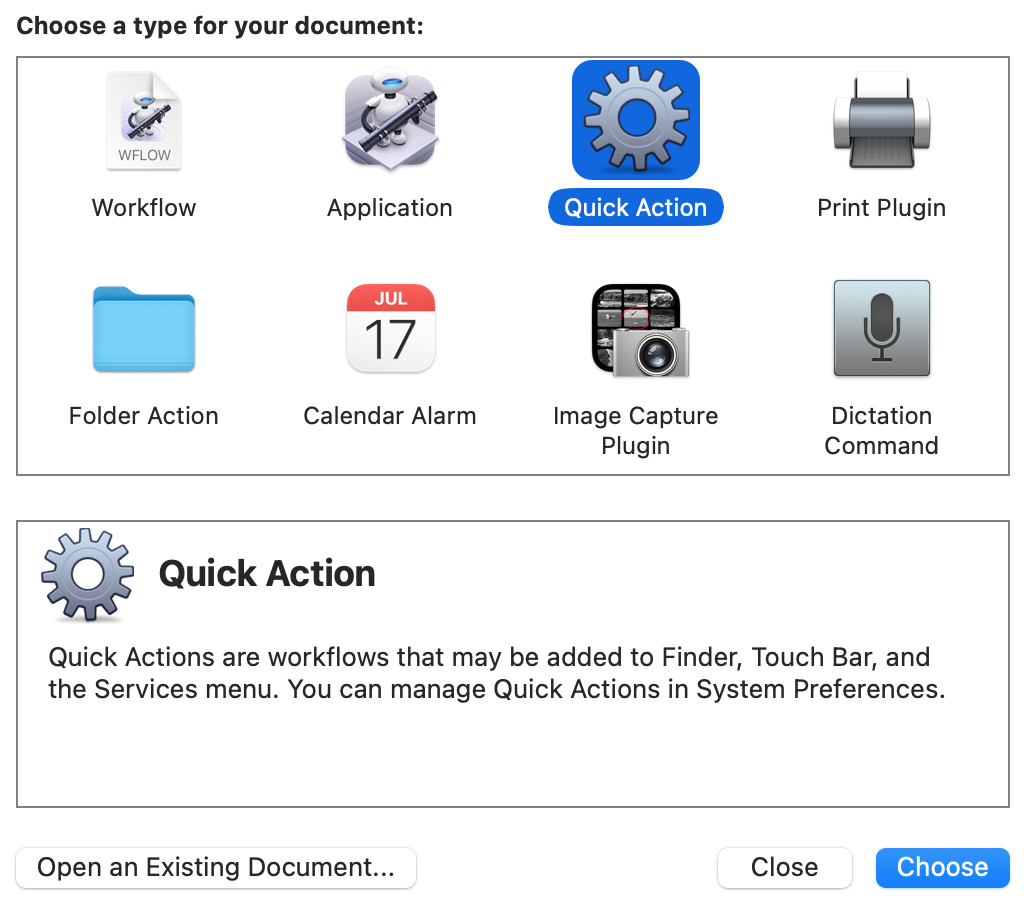
打开 Automator,选择 Quick Action:
按下图设置工作流:
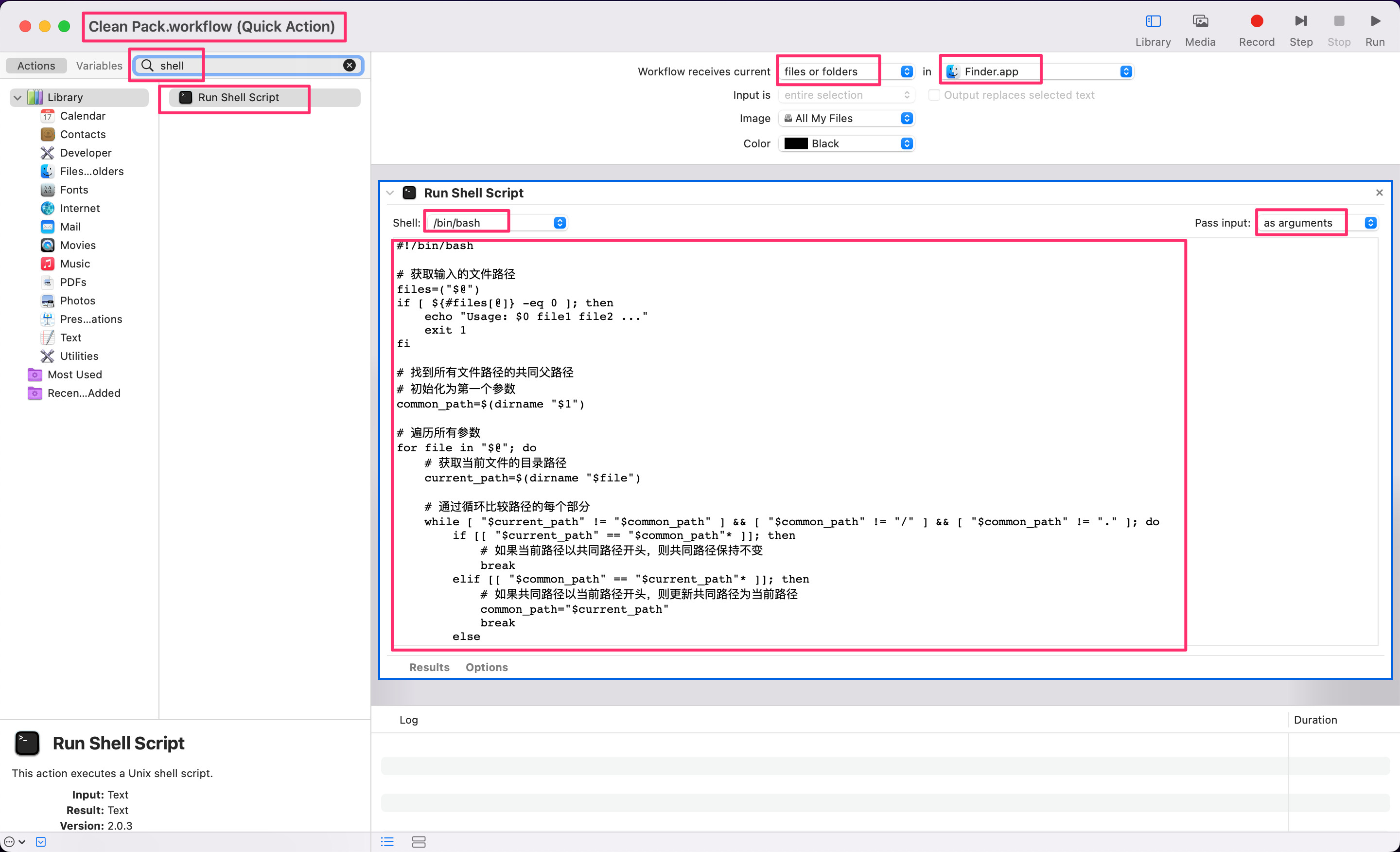
脚本如下:
以下代码由 AI 辅助生成
#!/bin/bash

# 获取输入的文件路径
files=("$@")
if [ ${#files[@]} -eq 0 ]; then
    echo "Usage: $0 file1 file2 ..."
    exit 1
fi

# 找到所有文件路径的共同父路径
# 初始化为第一个参数
common_path=$(dirname "$1")

# 遍历所有参数
for file in "$@"; do
    # 获取当前文件的目录路径
    current_path=$(dirname "$file")

    # 通过循环比较路径的每个部分
    while [ "$current_path" != "$common_path" ] && [ "$common_path" != "/" ] && [ "$common_path" != "." ]; do
        if [[ "$current_path" == "$common_path"* ]]; then
            # 如果当前路径以共同路径开头,则共同路径保持不变
            break
        elif [[ "$common_path" == "$current_path"* ]]; then
            # 如果共同路径以当前路径开头,则更新共同路径为当前路径
            common_path="$current_path"
            break
        else
            # 否则,将共同路径向上移动一级
            common_path=$(dirname "$common_path")
        fi
    done
done

# 检查common_path是否是有效的目录
if [ ! -d "$common_path" ]; then
    echo "Error: Common path '$common_path' is not a valid directory."
    exit 1
fi

# 生成文件名
filename="Clean"

# 收集所有文件的相对路径
relative_files=()
for file in "${files[@]}"; do
    relative_file=${file#"$common_path"/}
    relative_files+=("$relative_file")
done

# 切换到common_path目录并生成zip文件
cd "$common_path" || exit
zip -x \*.DS_Store -r "$filename.zip" "${relative_files[@]}"
COPYFILE_DISABLE=1 tar --exclude='.DS_Store' -cf "$filename.tar" "${relative_files[@]}"


# 恢复当前目录
cd -

echo "Zip file created at: $common_path/$filename.zip"
echo "Tar file created at: $common_path/$filename.tar"
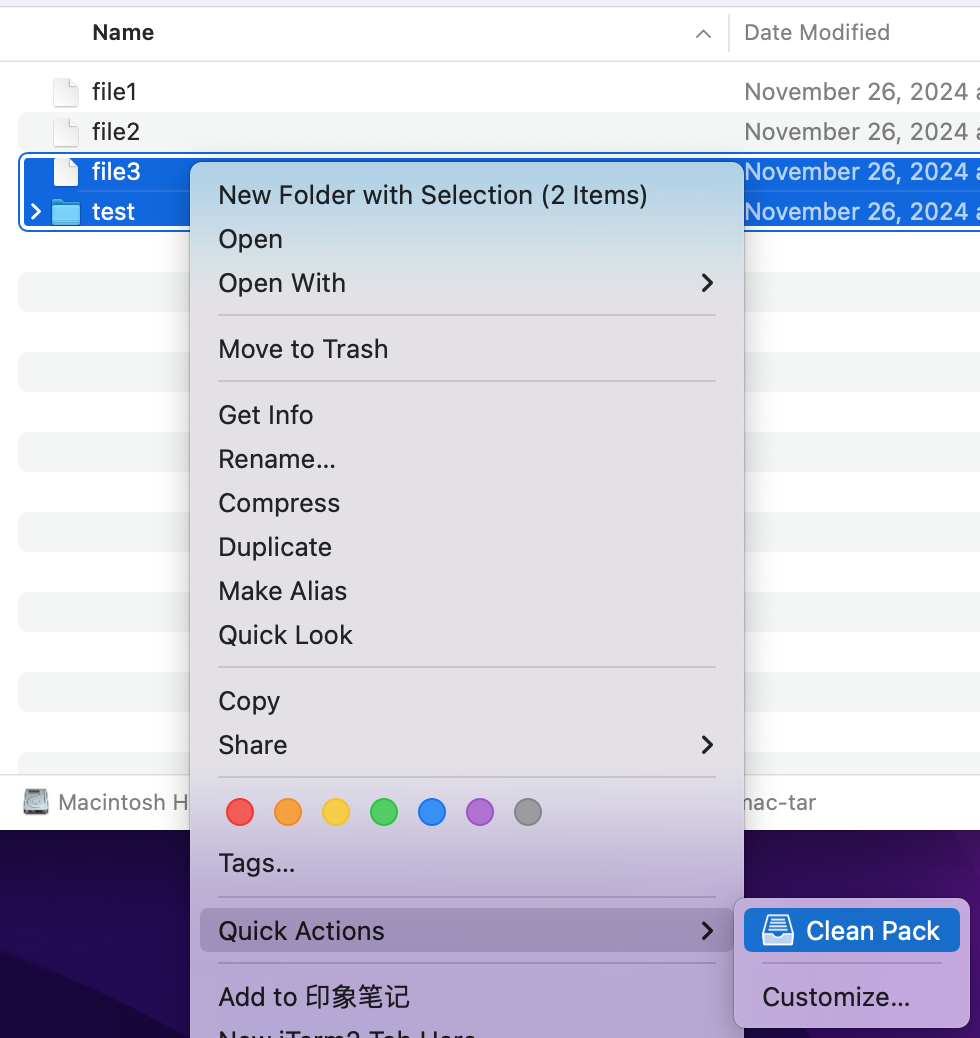
保存后即可在右键菜单中看到该工作流:
工作流文件(夹)保存在
/Users/alphahinex/Library/Services/Clean\ Pack.workflow
若直接复制上面脚本至工作流后执行报错,可尝试将脚本先复制进 Sublime Text 等编辑器,再重新复制粘贴至 Automator 脚本编辑框。也可直接使用 此工作流压缩包,解压后双击安装,或直接放入
/Users/<User>/Library/Services/路径。
在右键菜单选择 Clean Pack 后,会自动生成 Clean.zip 和 Clean.tar 两个文件,且不包含隐藏文件,在 Linux 中查看:
$ vim Clean.tar
" tar.vim version v32a
" Browsing tarfile /home/ec2-user/temp/Clean.tar
" Select a file with cursor and press ENTER

file3
test/
test/file3
test/test/
test/file2
tar: Ignoring unknown extended header keyword 'LIBARCHIVE.xattr.key'
test/file1
test/test/test/
$ vim Clean.zip
" zip.vim version v34
" Browsing zipfile /home/ec2-user/temp/Clean.zip
" Select a file with cursor and press ENTER
file3
test/
test/file3
test/test/
test/test/test/
test/file2
test/file1参考
- Get mac tar to stop putting ._* filenames in tar archives [duplicate]
- mac电脑禁止生成 .DS_Store 文件
- MacOS文件打包遇到的一些问题
- 调整 macOS 中的 SMB 浏览行为
- 在Mac上使用 Automator 和 Python 定制工作流